Google Business Profile UTM Tracking: How to Separate Map Clicks from Website Traffic
Stop guessing if your local SEO is working. Learn how to use UTM parameters on your Google Business Profile to separate Google Maps clicks from standard website traffic in GA4.
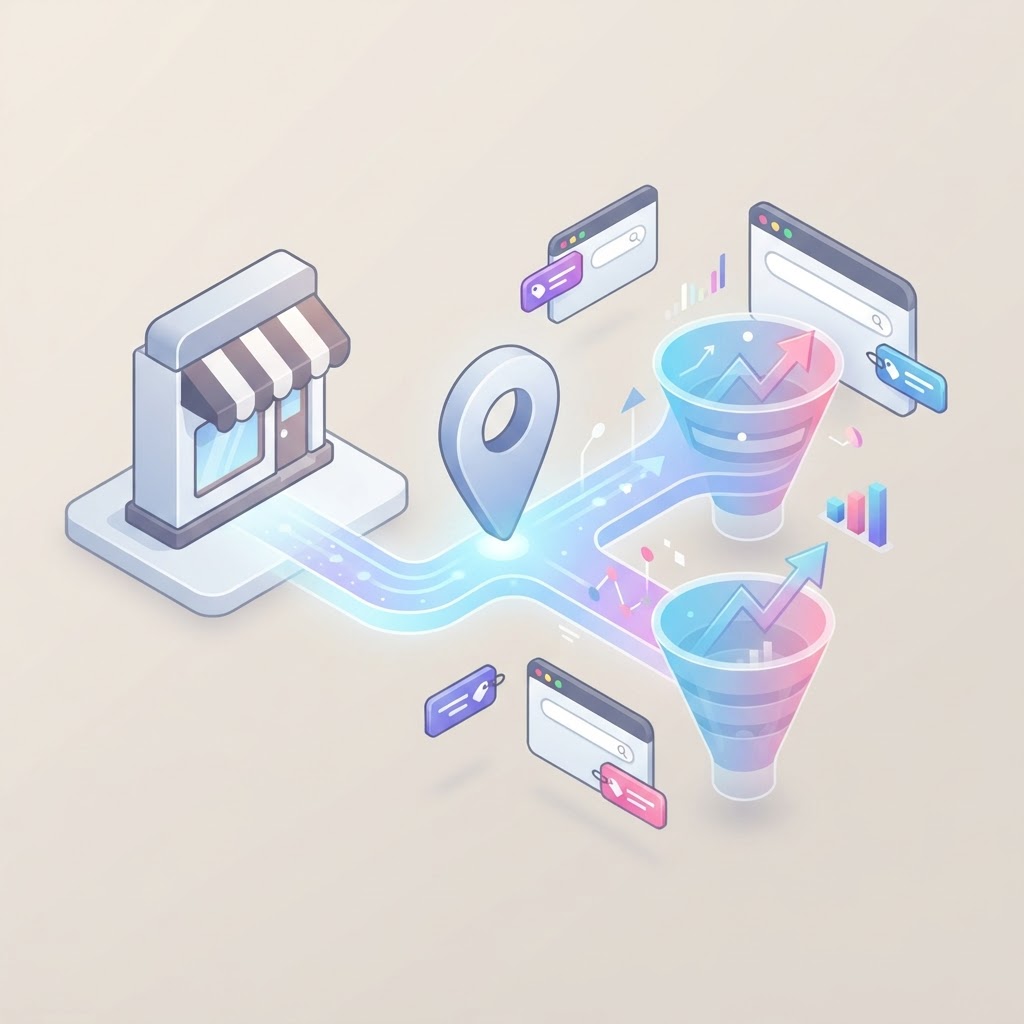
The Local Search Attribution Problem
If you look at your Google Analytics right now, you will likely see a massive bucket of traffic labeled "google / organic". But how much of that traffic came from someone clicking your website link in Google Maps versus a traditional blue-link search result? Without Google Business Profile UTM tracking, you have no idea.
By default, Google Analytics 4 (GA4) lumps all organic Google traffic together. If you spend hours optimizing your local presence, you need to know if those efforts are actually driving website visits, phone calls, and sales. Adding UTM (Urchin Tracking Module) parameters to your Google Business Profile links is the only way to separate your map clicks from your standard website traffic.
See how clearly your website communicates your location and services.
InspectRank reviews your local visibility signals and gives you a clear, prioritized report.
Get My Free ReportWhat is Google Business Profile UTM Tracking?
UTM parameters are short text snippets added to the end of a URL that tell your analytics tools exactly where a website visitor came from. When a user clicks a link with UTM tags, GA4 reads those tags and categorizes the traffic accordingly.
For a local business, a standard website link looks like this: https://yourwebsite.com
A UTM-tagged link looks like this: https://yourwebsite.com?utm_source=google&utm_medium=organic&utm_campaign=gbp
To the user, the destination is exactly the same. To your analytics platform, it is the difference between guessing and knowing.
The Exact UTM Formula for Local SEO
One of the most common mistakes local marketers make is inventing random UTM tags. GA4 has strict rules for how it groups traffic. If you use the wrong tags, your Google Business Profile traffic will get dumped into the dreaded "Unassigned" or "Other" channels, ruining your reports.
According to UTM Parameters Guide 2026: Complete Tracking Reference, you must constrain your medium to a fixed vocabulary so GA4 recognizes it. Here is the exact formula you should use for your Google Business Profile:
| Parameter | What to Use | Why It Matters |
|---|---|---|
| utm_source | google | Identifies the search engine. Keep it lowercase. |
| utm_medium | organic | Crucial. If you use "local" or "maps", GA4 will not recognize it as organic search traffic. |
| utm_campaign | gbp or google-business-profile | Separates this specific traffic from standard organic search. |
| utm_content | primary-link, menu, posts | Tells you exactly which button or link they clicked on your profile. |
By keeping the medium as organic, your overall SEO traffic numbers remain accurate, but you gain the ability to filter down to the specific gbp campaign when you want to analyze local performance.
Where to Add UTM Links in Your Profile
Do not stop at the primary website button. Your Google Business Profile has multiple conversion points, and you should track all of them to see how customers interact with your listing.
See how clearly your website communicates your location and services.
InspectRank reviews your local visibility signals and gives you a clear, prioritized report.
Get My Free Report1. The Primary Website Button
This drives the majority of your traffic. Use: ?utm_source=google&utm_medium=organic&utm_campaign=gbp&utm_content=primary
2. Appointment and Booking Links
If you use a native booking link, track it to see how many appointments originate directly from Maps. Use: ?utm_source=google&utm_medium=organic&utm_campaign=gbp&utm_content=appointment
3. Google Posts
Google Posts are a great way to share updates, but they often have low click-through rates. Tagging them helps you measure if the effort is worth your time. Use: ?utm_source=google&utm_medium=organic&utm_campaign=gbp-post&utm_content=spring-sale
4. Products and Services
If you list specific inventory or service pages, tag them to see which offerings generate the most interest. Use: ?utm_source=google&utm_medium=organic&utm_campaign=gbp&utm_content=product-name
How to View Your GBP Traffic in GA4
Once your tags are live, you need to know where to find the data. GA4 can be notoriously confusing, but finding your local traffic is straightforward if you know which report to check.
- Open GA4 and navigate to Reports > Acquisition > Traffic acquisition.
- Scroll down to the data table. By default, the primary dimension is "Session default channel group".
- Click the dropdown arrow next to that dimension and change it to Session source / medium.
- In the search bar above the table, type
google / organicand hit enter. - To see your specific Google Business Profile traffic, click the blue + icon next to the primary dimension to add a secondary dimension. Search for and select Session campaign.
You will now see your gbp campaign separated from your standard organic traffic, allowing you to measure exactly how many users, sessions, and conversions your map listing generated.
Common UTM Tracking Mistakes to Avoid
When implementing UTM tracking, a small typo can break your data. Avoid these common pitfalls:
- Using capital letters: GA4 is case-sensitive.
Googleandgooglewill show up as two different traffic sources. Always use lowercase. - Tagging internal links: Never use UTM parameters on links within your own website. As noted by Ortto's UTM Best Practices, if a visitor clicks an internal UTM-tagged link, their session is re-attributed, wiping out the original source data.
- Changing the medium: As mentioned earlier, do not use
utm_medium=gmb. Stick toorganicso GA4 correctly categorizes the traffic as organic search.
Next Steps for Local Attribution
Adding UTM parameters to your Google Business Profile is a foundational step in measuring your local SEO ROI. Once you have this data flowing into GA4, you can start connecting those website visits to actual revenue. If you want to take your tracking a step further, consider setting up offline conversion tracking to connect those map clicks directly to your in-store sales.
Sources & references
See what InspectRank finds on your website
Get a clear report covering website SEO, technical health, local visibility and AI search readiness.
Get My Free ReportRelated guides
Google Business Profile Q&A: How to Pre-Populate Questions to Drive Local Sales
Stop letting random users answer questions about your business. Learn how to pre-populate your Google Business Profile Q&A to control the narrative, feed AI search, and drive local sales.
Reserve with Google: How to Get the Blue 'Book Online' Button on Your Business Profile
Learn how to get the highly visible blue 'Book Online' button on your Google Business Profile using Reserve with Google, plus troubleshooting tips if your button is missing.
Disaster Recovery SEO: Managing Your Google Business Profile After a Fire, Flood, or Hurricane
Learn how to manage your Google Business Profile and local SEO after a fire, flood, or hurricane to protect your rankings and communicate with customers.

Google Business Profile Products: Why Service Businesses Should List Services as Products
Stop hiding your best work in a text menu. Learn why service businesses should use the Google Business Profile Products feature to drive more clicks, build trust with images, and increase conversions.

Google Local Guides: Do Their Reviews Impact Your SEO More Than Regular Customers?
A Local Guide badge doesn't magically boost your rankings, but the way these users write reviews absolutely impacts your local SEO. Here is why their feedback matters more.